
How it works
A guided path from your first sign-in to your report, and beyond.
These are real CMMC.Live screens, shown with a sample company and made-up work. Your team uses the same screens for your own company.
Watch first
The whole journey in 90 seconds.
Press play for sound. The screens below show each part up close.
1 · Day one
Three first steps, never an empty screen
Your admin signs in to a short list: start your CMMC level, add your people, and choose who does what. Each one ticks itself off when it is done.
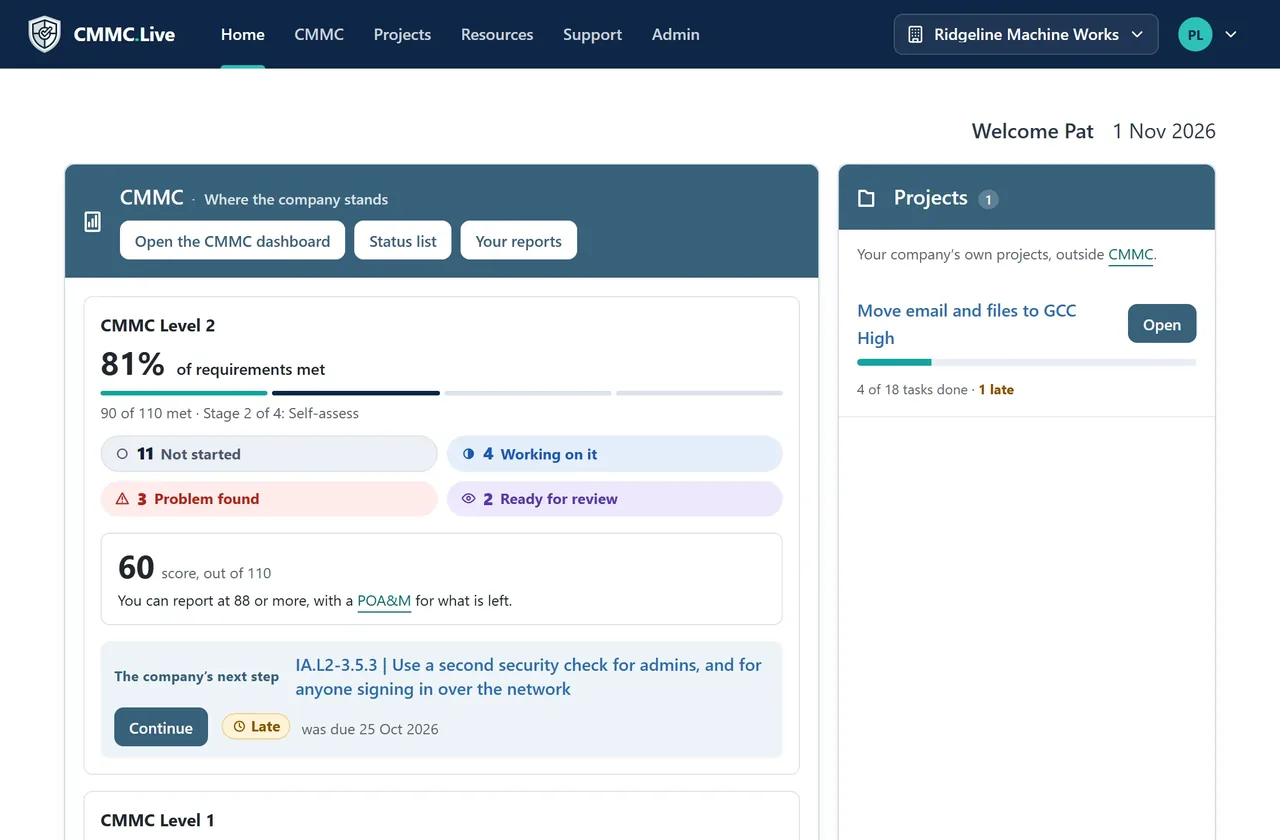
Home then shows each person their own to-do list, the company’s progress, your projects, and the latest articles and news.
2 · One requirement, one page
Understand it, then do it
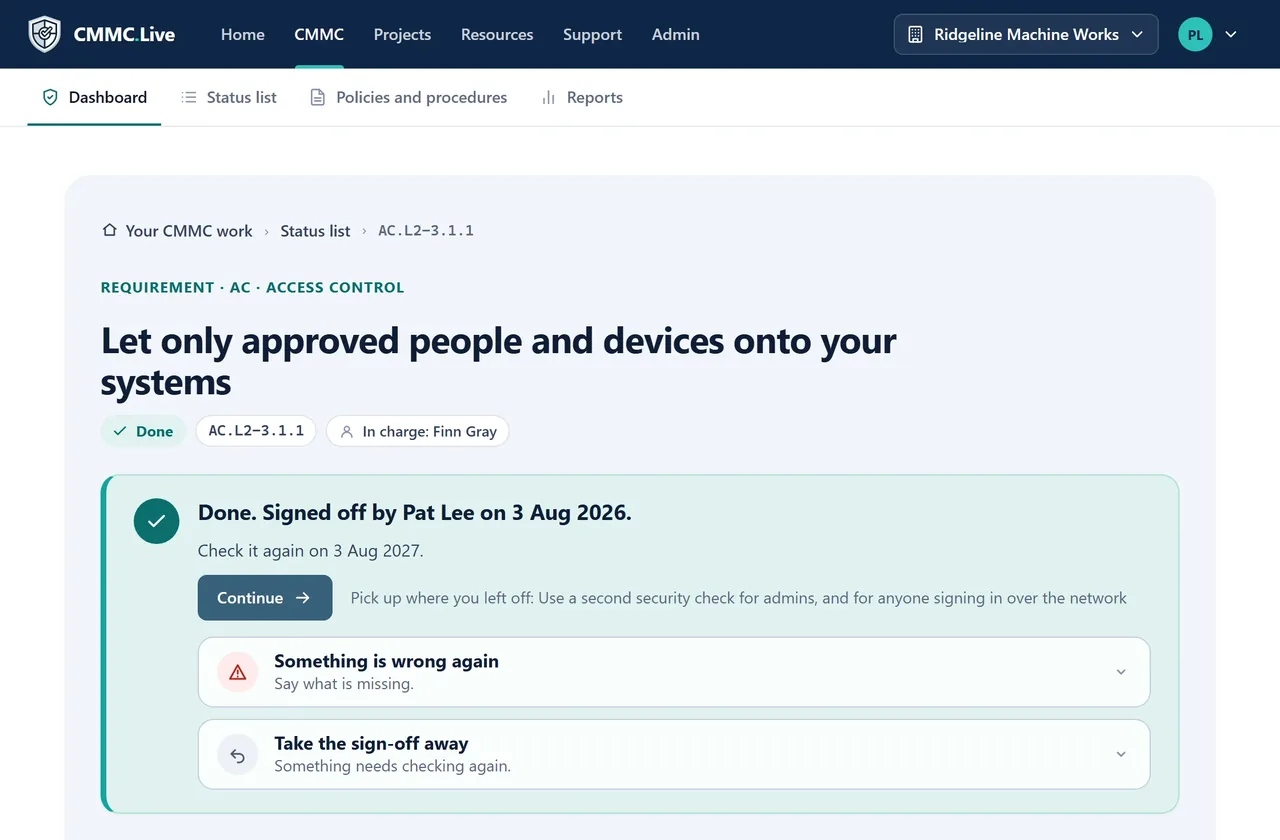
The official words, what they mean in plain English, who usually does the work, and what you need first. Then each step, answered on the same page.
Something not ready? Record the problem and the actions that fix it, with who and by when. Your admin signs it off once every step is answered.
3 · Where you stand
The next thing to do, always on top
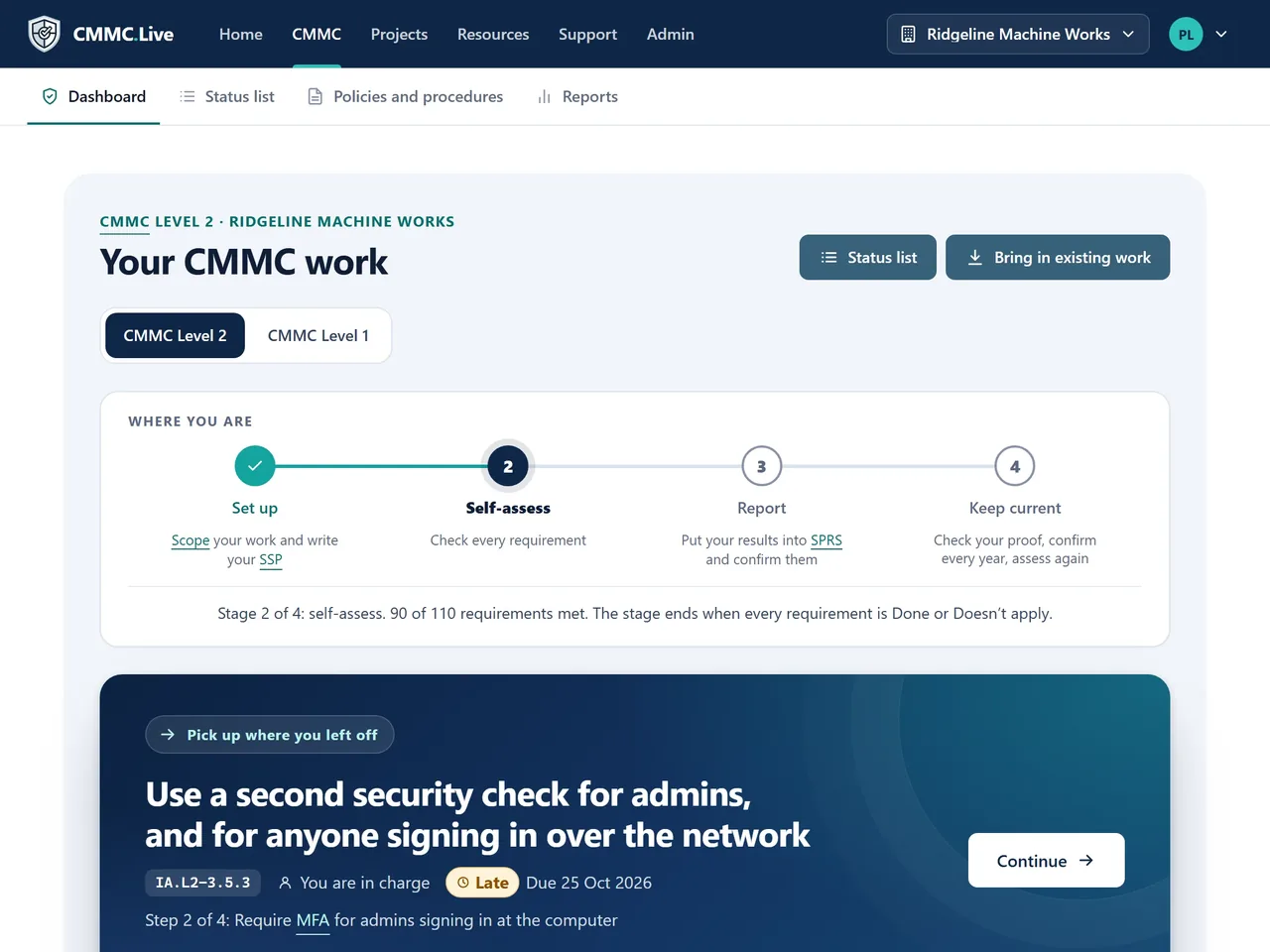
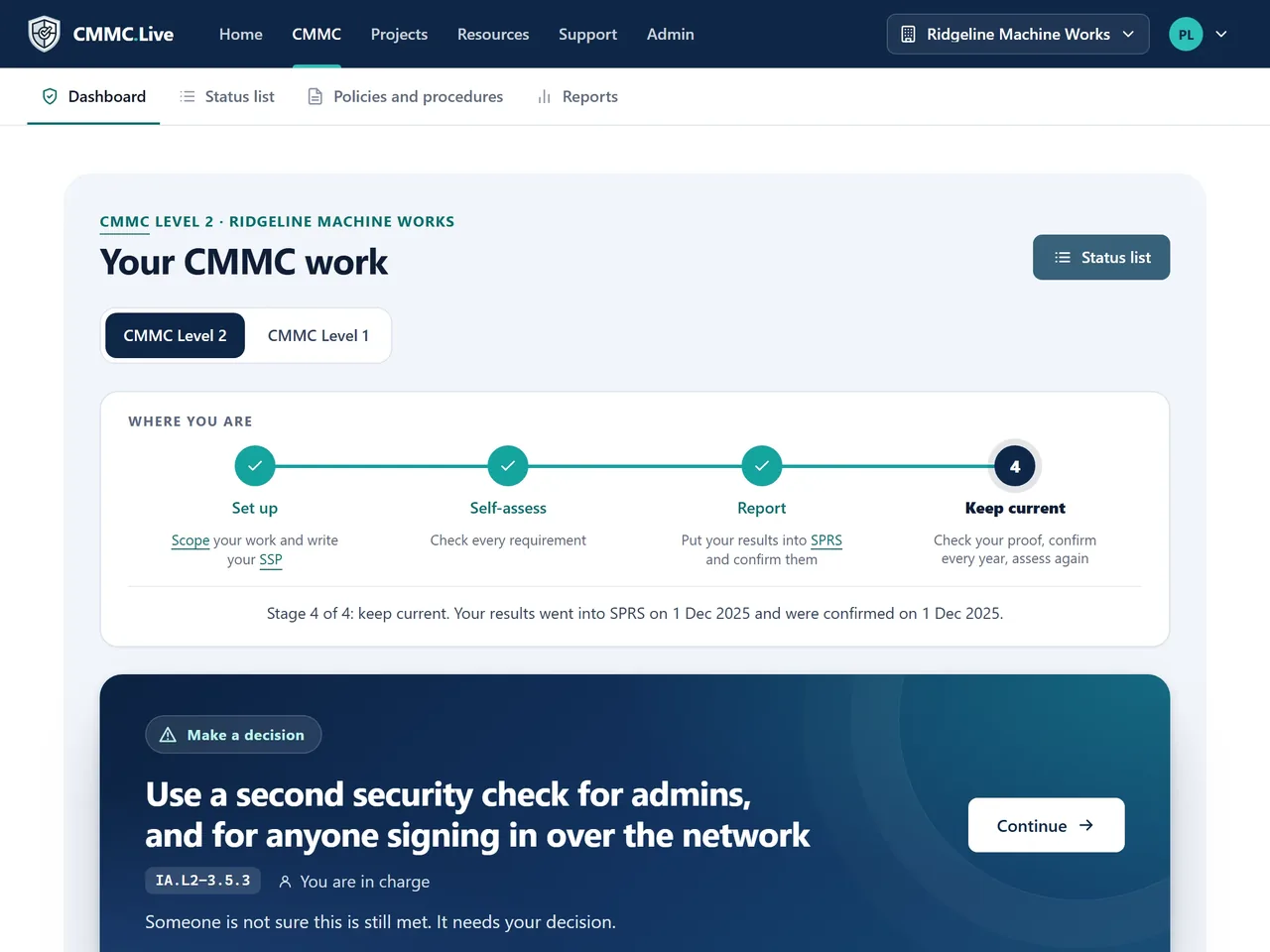
The CMMC dashboard shows your stage, picks up where you left off with late work first, and lists due dates, open actions and your score.
The status list shows every requirement and its state. A CMMC User sees only the work given to them.
4 · Policies and procedures
Written with you, approved by you
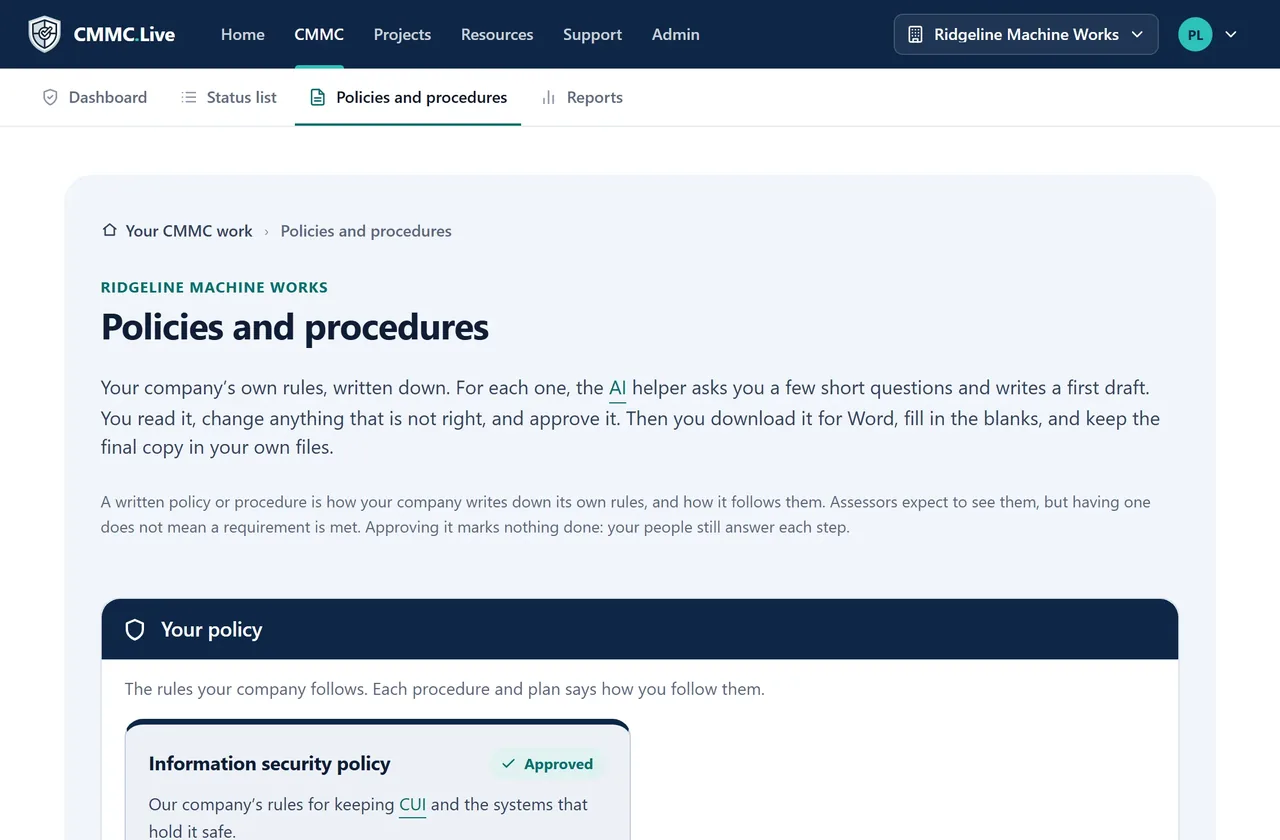
For each document, the AI helper asks a few short questions and writes a first draft. Anything not yet decided is left as a blank to fill in. You change it, approve it, and download it for Word.
When your managers decide a change, type it in your own words: the helper shows each line as it was and as it would be. Every version is kept, with who approved it and why.
5 · The AI helper
Ask the way you would ask a person
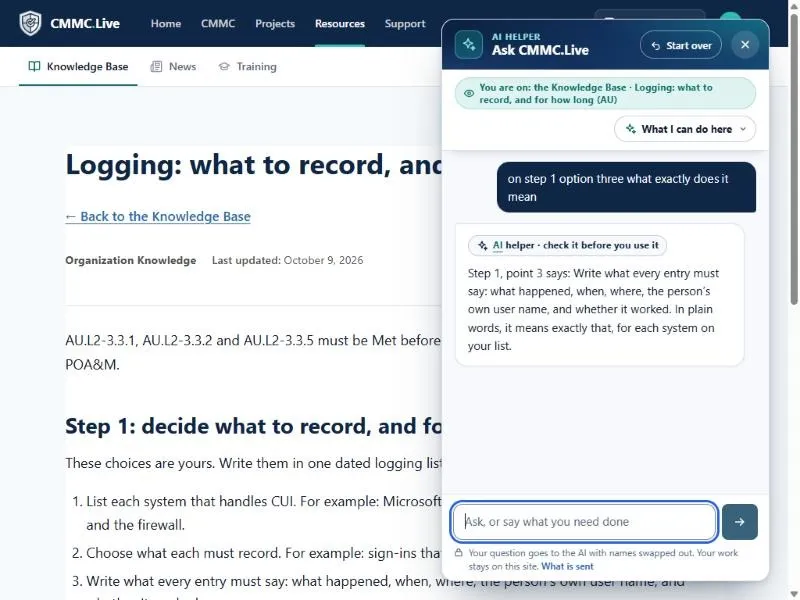
The helper is on every page and knows where you are. It answers CMMC questions from the official documents and names the page. It drafts the actions that fix a problem, writes a note with you, plans a project, and tidies your words.
It only does what you could do yourself on that page, and nothing is added to your site until you press to keep it.
6 · Projects
Some requirements are really projects
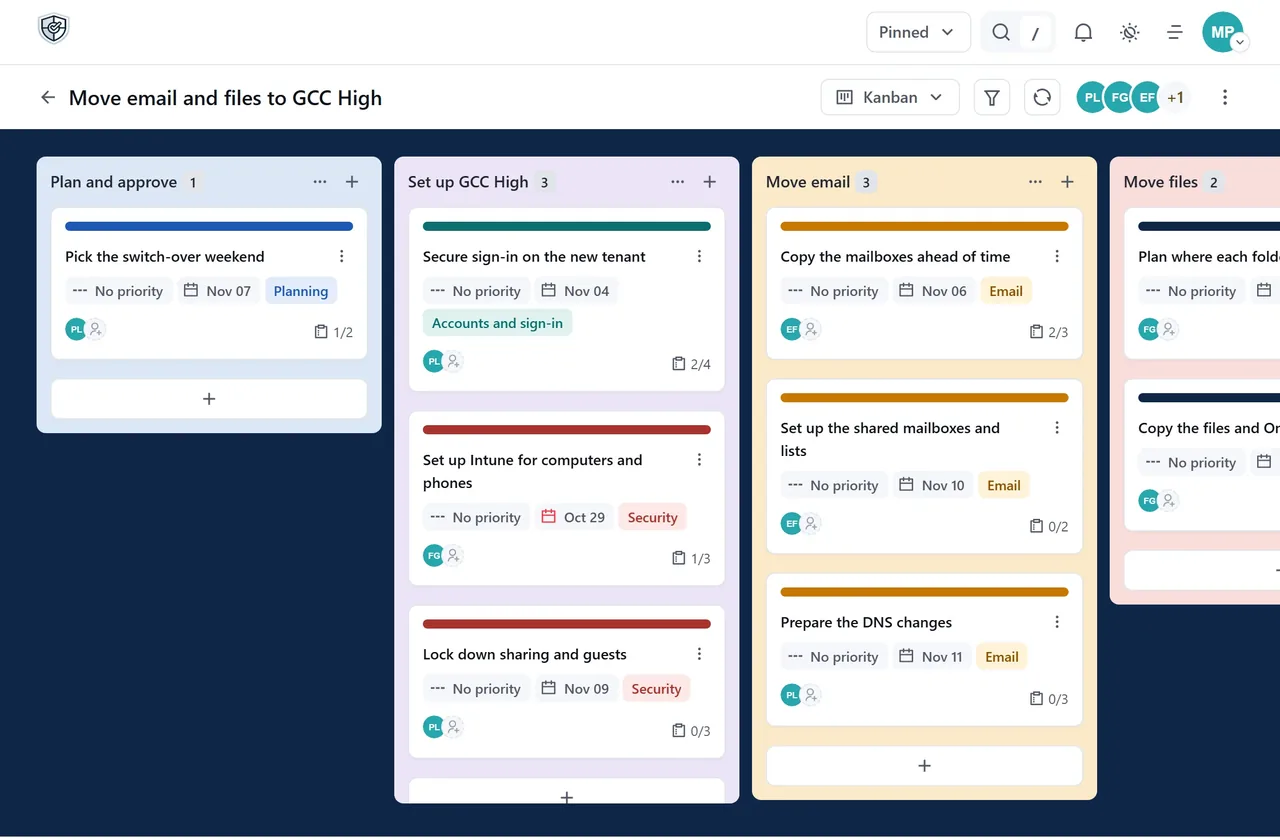
A move to GCC High takes weeks, so it needs more than one checkbox. Press Make it a project, and the AI helper plans the stages, tasks and subtasks with you. One project can serve many requirements.
Each requirement shows how far along the work is. When it is done, your team answers the steps and signs it off.
7 · Reporting
Everything you need when it is time to report.
SPRS answer sheet
Every item SPRS asks for, ready to type in.
POA&M
What is not met yet, and what may wait, within the rule’s limits.
Your SSP and self-assessment record
Your System Security Plan, written from your record, and the record of your answers.
Affirmation briefing
What your affirming official reads before confirming in SPRS.
Company report
The whole picture for your managers, with charts, for Word and PDF.
Gap analysis
What is not met, what each gap is worth, and the road to reporting.
8 · Keeping it up
Stay ready after you report
Each requirement comes back when it is time to check it. A new policy version or a big change brings back what it touches. You see what you reported beside how it stands today.
Reminders cover the yearly confirmation and the next assessment, and a fresh round keeps last time’s answers as hints.
Who does what
Everyone sees what is theirs.
CMMC Admin
Runs the work: starts a level, gives each requirement to someone, signs work off and runs the reports.
CMMC User
Works on what they are in charge of, and sees only that.
More than one company
For an IT company with customers, or a parent with smaller companies: each company with its own people and its own admin. An extra.
See CMMC.Live in action.
Book a short video call. We walk you through CMMC.Live using a sample company, so you see every screen without sharing anything about yours. No cost, no obligation.